8/7/2025
Reviews
Smart Ways to Get More Reviews [Guide]
Practical, proven ways for any business to get more authentic reviews.

TLDR: To create a Google review link, open your Google Business Profile, click “Ask for reviews,” and copy the short link it hands you. That link drops a customer straight into the write-a-review box in one tap, no searching required, which is the single biggest reason it works. Below are three ways to generate the link, how to shorten it, how to turn it into a QR code for your counter and invoices, the messages that get it clicked, and the one mistake that turns a review link into a bad-review machine.
A happy customer wants to leave you a review. You tell them, “Just look us up on Google and leave a review.” They open Maps, type your business name, tap the wrong location, scroll past your phone number and hours, hunt for the reviews tab, and somewhere in there they get a text from their kid and the whole thing evaporates.
You did everything right. You still lost the review.
A Google review link closes that gap. It is a single URL that opens the review box directly, so the customer taps once and starts typing. No search, no navigation, no chance to get distracted. It is the most important and most overlooked piece of getting more reviews, and you can create yours in about 30 seconds. Here is exactly how.
A Google review link is a direct URL that takes someone straight to the “write a review” screen for your business. Instead of asking a customer to find you, you hand them a link that puts the star rating and the text box right in front of them.
Google gives every verified business a short version that looks like https://g.page/r/XXXXXXXX/review. Tap it on a phone and the Google Maps review dialog opens on your business, cursor blinking, five empty stars waiting. That one-tap experience is why a direct link converts far better than “search for us.”
The link is not a trick or a loophole. It is a feature Google built and actively encourages you to use. You are not gaming anything; you are removing friction Google put there by accident.
You have three ways to get your link, from easiest to most manual. Any of them produces a link that works.
This is the official route and it takes under a minute.
https://g.page/r/XXXXXXXX/review and gives you a “Copy link” option.That is your link. Save it in your phone notes, your text templates, and your email signature so it is always one paste away.
If you cannot find the button, or you manage several locations, build the link by hand from your Place ID.
Go to Google’s Place ID Finder (search “Google Place ID Finder”).
Type your business name and address, then select your business on the map.
Copy the Place ID it shows you (a long string that often starts with ChI).
Drop it into this template, replacing YOUR_PLACE_ID:
https://search.google.com/local/writereview?placeid=YOUR_PLACE_ID
Open the finished URL on your phone to confirm it launches the review box.
This method never breaks and works even for businesses that do not show the “Ask for reviews” button yet.
Need it in a hurry with no dashboard access?
It is less clean than the first two, but it works when you are standing at the counter and just need something now.
Yes, if you plan to say it out loud, print it, or want it to look trustworthy in a text. The raw g.page/r/... link is already short, but a Place ID link can be a mouthful.
A shortened, branded link does three things: it is easier to read, it looks less like spam, and you can track clicks. Compare the options:
| Link type | Example | Best for |
|---|---|---|
| Raw Place ID link | search.google.com/local/writereview?placeid=ChI… | Behind-the-scenes use, never shown to customers |
| Google short link | g.page/r/XXXX/review | Texts and emails, works out of the box |
| Custom short link | yourshop.com/review or bit.ly/yourshop-review | Print, verbal, business cards, anything customers see |
| QR code | (image that opens the link) | Counters, receipts, invoices, table tents |
To make a custom short link, use a free URL shortener or, better, a branded redirect on your own domain (for example, point yourshop.com/review at the Google link). A link with your own name on it earns more taps than a random string of characters.
A QR code is a review link you can put on paper. Someone points their phone camera at it, taps the pop-up, and lands in the review box. It is perfect for the counter, the receipt, the invoice, the table tent, and the truck window.
Test the printed code with two or three different phones before you order a hundred of them. A QR code that does not scan is worse than no code at all.

Here is the part most “how to get a review link” guides skip, and it is the part that actually protects your business.
The link is a megaphone. It makes leaving a review effortless. That is great when you hand it to a happy customer. It is a disaster when you hand it to an annoyed one, because you just made it effortless for them to post a 1-star, too.
So the real system is not “get the link and send it to everyone.” It is ask everyone how it went first, and send the review link only to the people who tell you they are happy. The unhappy ones you want to hear from privately, in a text or a call, where you can actually fix the problem before it becomes public.
That is the difference between a review link and a review system.
One caution: do not build a filter that outright blocks unhappy customers from ever reaching Google, and never gate the link behind “only 5-star customers get it.” Google’s policies prohibit review gating, and getting caught can hurt your listing. The goal is a natural order of operations, ask how it went, then point happy people to the easy link, not a wall that silences criticism. There is a clean way to do this, and I break it down in how to ask for reviews without being shady.
This is exactly what tools like VisibleFeedback automate. After each job, the customer gets a quick check-in. The happy ones get routed to your Google review link, and any unhappy reply lands in your inbox instead of on your listing, so you can catch it before it turns into a public review.
A link only works if people see it. Put it everywhere your customers already are:
Do not spread yourself thin trying all of these on day one. Start with the follow-up text, because that is where most reviews actually come from. For the timing and wording, see how to get more Google reviews for your service business.
The link does the technical work; the message does the human work. Keep it short, warm, and specific.
Follow-up text (a day or two after the job)
Hi [Name], it’s [Your Business]. Glad we could help with [service] yesterday. If you have 30 seconds, a quick Google review really helps other folks in [town] find us: [link]. Thank you!
After a happy in-person moment
So glad you’re happy with it! Would you mind leaving a quick review? Here’s a link that makes it easy: [link]
Email version
Subject: How did we do? Hi [Name], thanks again for choosing [Your Business]. If everything went well, we’d be grateful for a quick Google review. It takes about a minute: [link]. If anything fell short, just reply to this email and we’ll make it right.
Notice the email version gives an unhappy customer a private off-ramp (“just reply and we’ll make it right”) before the review link. That one line quietly routes problems to your inbox instead of your listing. More on that idea in why negative reviews happen and how to intercept them.
How do I create a Google review link for free? Sign in to the Google account that manages your business, search your business name or open your Google Business Profile, and click “Ask for reviews.” Google generates a free short link that opens your review box in one tap. There is no cost and no third-party tool required.
Why is my Google review link not working? The most common causes are an unverified Google Business Profile, being signed into the wrong Google account, or a typo in a hand-built Place ID link. Confirm your profile is verified, rebuild the link with the Place ID Finder, and test it on a phone that is not signed into your business account.
Can I make a QR code from my Google review link? Yes. Copy your review link, paste it into any free QR code generator that does not expire, and download the image as a high-resolution PNG or SVG. Print it with a short prompt like “Scan to leave a review,” and test the printed code on a few phones before mass printing.
Is it against Google’s rules to send a direct review link? No. The direct link is a feature Google provides and encourages. What is against the rules is review gating (only routing 5-star customers to Google), offering incentives for reviews, or asking for a specific rating. Sending the link to happy customers is completely fine.
How many Google reviews do I need? More than your closest competitor, and growing steadily. Volume and recency matter as much as your average rating. A business earning a few fresh reviews every week signals ongoing quality to both Google and the customer reading your profile. See free ways to get more Google reviews for low-cost tactics.
Creating a Google review link takes about 30 seconds, and it removes the single biggest reason happy customers do not leave reviews: the hassle of finding you. Generate it from your Google Business Profile, shorten it, turn it into a QR code, and put it in your follow-up text.
Then do the part that actually protects your reputation: send that link only to customers you already know are happy, and give everyone else a private way to tell you what went wrong first. That is how you build a wall of 5-star reviews without accidentally handing a megaphone to the one customer who had a bad day. If a hard review does slip through, here is how to respond to bad reviews so your reply reassures the next hundred readers.
Want that whole system to run itself after every job? Start a free 14-day trial of VisibleFeedback, no credit card required. It sends the check-in, routes happy customers to your Google review link, and catches the unhappy ones privately before they ever post.
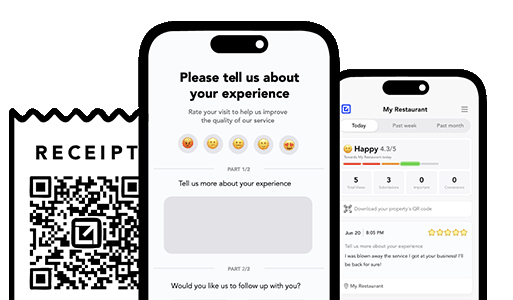
Email clients after every job. Catch issues early, recover unhappy clients fast, and drive repeat work with smart reminders.

Austin Spaeth is the founder of VisibleFeedback, a tool that helps service companies automate post-job follow-ups, catch issues early, and drive repeat work with smart reminders. With a background in software development and a focus on practical customer retention systems, Austin built VisibleFeedback to make it easy to email customers after every job, route problems to the right person, and keep relationships strong without awkward outreach. When he’s not building new features or writing playbooks for service businesses, he’s wrangling his six kids or sneaking in a beach day.
Whether you’re dealing with callbacks, unhappy customers, or low repeat work, we’ll help you tighten the follow up loop.
No credit card required.
