8/7/2025
Reviews
Smart Ways to Get More Reviews [Guide]
Practical, proven ways for any business to get more authentic reviews.

TLDR: A Google review QR code lets a customer scan with their phone and land straight in your review box, so they can leave a review while they are still standing in front of you. To make one, copy your Google review link from your Business Profile, paste it into a free QR generator, download it as an SVG or high-resolution PNG, and print it where people wait. The catch: a code anyone can scan will also collect your angry customers, so point it at happy people and give everyone else a private way to flag a problem first. Below is the step-by-step, the best placements, the wording that gets it scanned, and the mistake to avoid.
You ask a happy customer to leave a Google review. They mean it. Then they get in the car, the phone rings, dinner needs figuring out, and the review you earned quietly evaporates. The gap between “I’ll do it later” and actually doing it is where most reviews die.
A Google review QR code removes that gap. Instead of asking someone to remember, you let them scan a small square with the phone already in their hand and drop straight into your review box, five empty stars waiting. They do it right there, in the twenty seconds they are still with you, instead of maybe, someday, from the couch. This guide covers how to make a Google review QR code for free, where to put it so it actually gets scanned, and the one setup mistake that turns it into a bad-review machine.
A Google review QR code is a scannable square that encodes your Google review link, the direct URL that opens the “write a review” screen for your business. Point a phone camera at it, tap the notification that pops up, and Google Maps opens on your business with the star rating and text box ready to go. No searching, no typing your name, no tapping the wrong location three towns over.
It is the physical, in-person version of the review link you would text or email. Same destination, different delivery. The link works great in a follow-up message; the QR code works great on a counter card, a receipt, a work van, or a window, anywhere a customer is standing in front of you with nothing to do but wait.
The problem with a verbal ask is that it outsources the hard part to the customer at the worst possible time. “Look us up on Google and leave a review” means open Maps, type your name, pick the right listing, scroll past your hours and phone number, find the reviews tab, and only then start typing. Every one of those steps sheds people. A QR code collapses all of it into one scan.
If you want the messaging side of this too, we cover the sister piece in how to create a Google review link, which is the same destination delivered by text or email instead of by scan.
You do not need to pay for anything or install an app. Five minutes, start to finish.
Open your Google Business Profile (the dashboard for your listing, at business.google.com or straight from Google Search when you are signed in as the owner). Find the “Ask for reviews” or “Get more reviews” button. Google hands you a short link that looks like https://g.page/r/XXXXXXXX/review. Copy it.
No access to the profile? You can also build the link manually with your Place ID, but the “Ask for reviews” button is the fast path and it is the same link either way.
Use any reputable free QR code generator in your browser. Paste your review link into the URL field. Important: use a generator that makes a static code, meaning the link is baked directly into the pattern. Some sites default to a “dynamic” QR that routes through their own domain and can stop working, or start charging, if you cancel. For a link that never changes, static is simpler and free forever.
Download the SVG version if the generator offers it. SVG is vector, so it stays razor sharp whether it is printed on a business card or blown up onto a four-foot window cling. If you only have PNG, grab the largest size available, at least 1000 by 1000 pixels, so it does not turn fuzzy when printed.
Scan your own code with two different phones, one iPhone and one Android if you can. Confirm it opens the Google review box on the correct business, not a random listing. This is the step people skip and regret after the cards are already at the printer.
A bare QR code is a mystery. Add one line of text above or below it: “Scan to leave us a Google review” plus your logo and, ideally, a tiny “It takes 20 seconds.” Give people a reason and a time cost and far more of them scan.
A QR code only works where a customer has a spare thirty seconds and a phone within reach. Put it where people are already waiting, paying, or standing around, and avoid spots where they are moving or distracted.
| Placement | Why it works | Best for |
|---|---|---|
| Counter or register tent card | Customers wait there with phone in hand while paying | Retail, salons, restaurants, auto shops |
| Printed receipt or invoice footer | They are already looking at it, and it goes home with them | Any business that prints a receipt or invoice |
| Table tent or menu | Diners have downtime between courses | Restaurants, cafes, bars |
| Window cling or door sticker | Catches people while they wait for you to open or finish | Salons, gyms, clinics, storefronts |
| Work van, uniform, or job folder | The homeowner is standing right there at wrap-up | Home services, HVAC, plumbing, cleaning |
| Back of the restroom door | A genuinely captive, bored audience | Restaurants, bars, gyms |
| Thank-you card left after the job | A warm, tangible reminder at the happiest moment | Contractors, movers, detailers |
Here is where most advice stops and most businesses get burned. A QR code taped to the counter gets scanned by everyone, and “everyone” includes the customer who waited too long, the one whose part came in wrong, the one who is just having a bad day. You have not only invited a public review, you have made it effortless for the exact person you least want writing one. Done wrong, a review QR code is a one-tap complaint button.
You cannot fix this by hiding the code from grumpy people; you never know who is quietly annoyed. What works is putting a quick, private check-in in front of the public review, so unhappy customers vent to you instead of to Google. This is the difference between a review funnel and a review free-for-all.
The pattern is simple. After the visit, ask a low-stakes private question first: “How did everything go?” Anyone who is happy gets pointed to the public Google code or link. Anyone who flags a problem gets routed to you, privately, so you can make it right before it ever becomes a star rating. It is not review gating in the shady, against-the-rules sense of blocking bad reviews; it is giving unhappy customers a real channel to be heard, which is what they actually wanted in the first place. We break down the honest way to do this in ask for reviews without review gating and the mechanics in the feedback funnel approach.
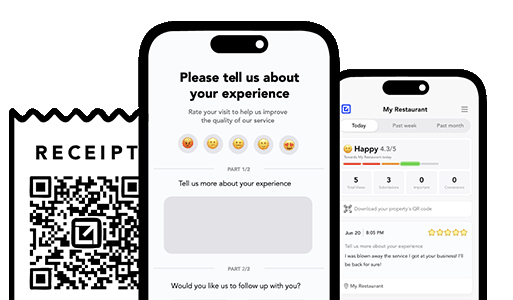
This is exactly what an automated follow-up tool is for. Tools like VisibleFeedback text or email each customer after the job, ask the private “how did it go” question first, and only route the happy ones toward your public Google review code while flagging problems straight to you with an instant alert. VisibleFeedback was built to catch issues before they show up on Google or Yelp, and it does the recurring reminder side too, the rotation-is-due or time-for-your-next-visit nudges that bring people back. It runs from $65 a month with no contract, which is a fraction of the $299 to $699 the big reputation platforms charge for the same job.

A code on the counter that nobody notices does nothing. A few small things move the needle a lot:
If you want the deeper playbook on earning volume, we lay it out in how to get more Google reviews for your service business.
Yes. Your review link is free from your Google Business Profile, and plenty of reputable QR generators create a static code at no cost. The only spend is printing. Skip any tool that tries to lock a “dynamic” code behind a subscription for a link that never changes.
A static QR code does not expire, because the link is encoded directly into the pattern. It works as long as your Google review link works, which is indefinitely. Dynamic codes that route through a third-party domain can break or start charging, which is why static is the safer choice here.
Absolutely, and you should. Receipts, invoices, business cards, thank-you notes, and job folders are all excellent because the customer already has the paper in hand. Use the SVG version so it prints sharp even at business-card size.
No. Making it easy to leave a review with a link or QR code is fine and encouraged. What violates the rules is gating, only soliciting reviews from happy customers while blocking unhappy ones, or offering incentives. A private check-in that gives everyone a way to be heard, then points satisfied customers to the public code, stays on the right side of the line.
Point the code at a link with tracking parameters, or use a follow-up tool that reports where reviews originate. At minimum, watch your review count in the weeks after you place the code and note the jump. If you run both a counter code and follow-up texts, tracking tells you which one is pulling its weight.
A Google review QR code is one of the cheapest, highest-leverage things a local business can put on a counter. Make it once for free, place it where customers already wait, add a clear label, and ask out loud at the right moment. Just do not point it at everyone blindly: run a quick private check-in first so the happy customers feed your public rating and the unhappy ones reach you instead of Google. Get that order right and the little square on your counter quietly compounds into a stronger reputation, month after month.
Start a free 14-day trial of VisibleFeedback, no credit card required.
Email clients after every job. Catch issues early, recover unhappy clients fast, and drive repeat work with smart reminders.

Austin Spaeth is the founder of VisibleFeedback, a tool that helps service companies automate post-job follow-ups, catch issues early, and drive repeat work with smart reminders. With a background in software development and a focus on practical customer retention systems, Austin built VisibleFeedback to make it easy to email customers after every job, route problems to the right person, and keep relationships strong without awkward outreach. When he’s not building new features or writing playbooks for service businesses, he’s wrangling his six kids or sneaking in a beach day.
Whether you’re dealing with callbacks, unhappy customers, or low repeat work, we’ll help you tighten the follow up loop.
No credit card required.
